Keystroke Display & Zoom Curve Editor
Show keyboard shortcuts on screen, edit zoom curves visually, and control exactly how your recordings zoom over time.
See every keystroke on screen
Nekorder now captures and displays your keyboard input as you record. Shortcuts like ⌘C or ⌥⇧A appear as clean, readable chips on the video — perfect for tutorials, demos, and walkthroughs where viewers need to follow along.
You can control how long keystrokes stay visible, adjust their size, and toggle them on or off in cursor settings.
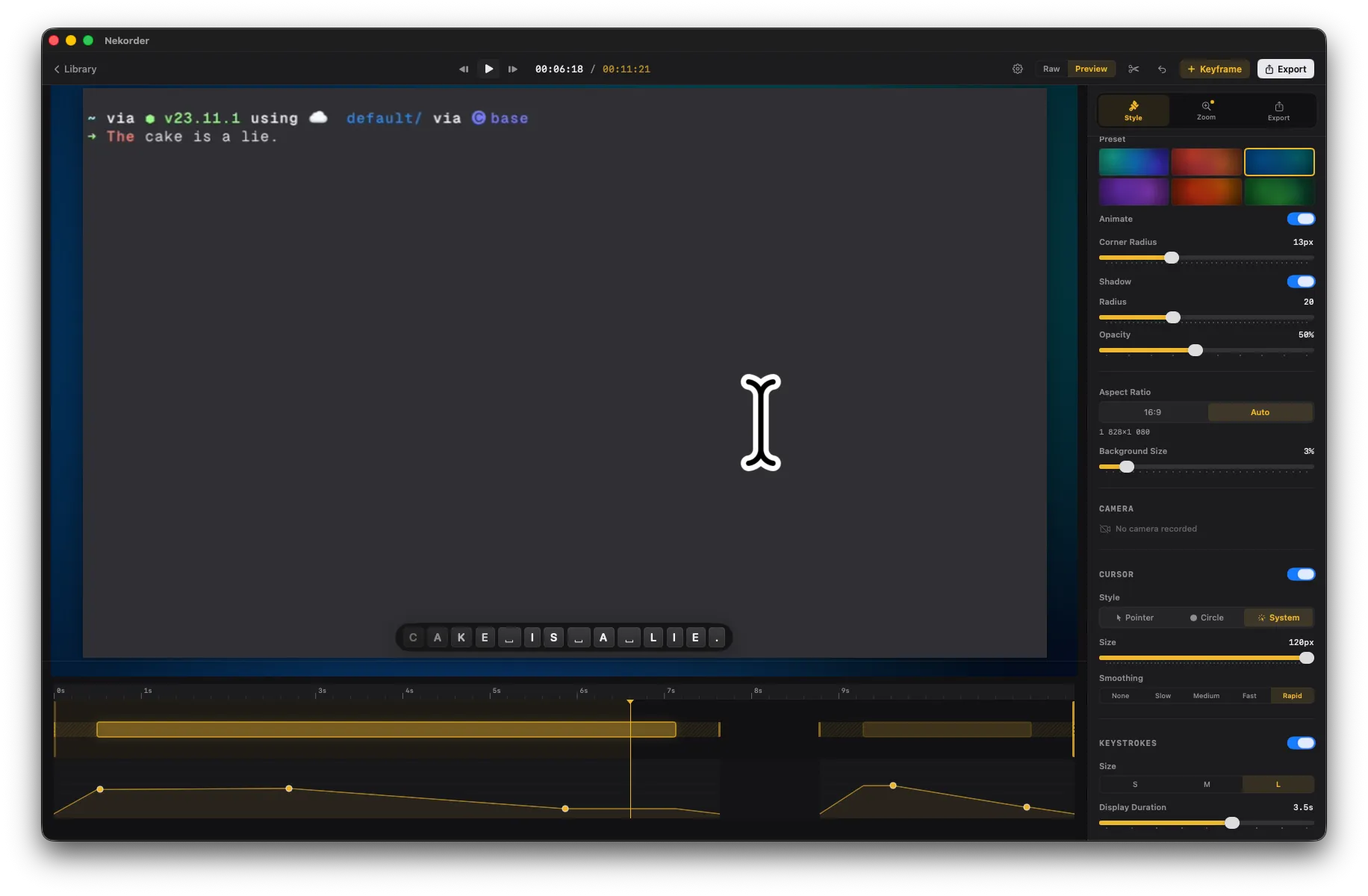
Redesigned zoom editor
The zoom timeline got a major upgrade. Instead of placing individual zoom points, you now work with zoom ranges — stretches of time where the camera holds a specific zoom level, with smooth transitions between them.
What’s new
- Zoom curve track — A dedicated lane below the main timeline shows your zoom level as a filled curve. Drag control points to shape exactly how the zoom changes over time.
- Range-based keyframes — Each keyframe now spans a time range with draggable start and end edges, so you can see and adjust how long a zoom holds.
- Pan waypoints — Click anywhere on the canvas during a hold zone to place waypoints that guide where the camera pans while zoomed in.
- Smooth transitions — Nekorder automatically generates natural ramps between zoom ranges, so there are no hard jumps.
Known issues
- For some users, the webcam may not record or squish the video when the app is launched for the first time