Redesigned Editor & Recording UI
Redesigned editor and recording UI, Google Meet-style device bar, custom export resolution and frame rate, and smoother zoom transitions.
A cleaner, more focused editor
The editor layout has been reorganized for a better workflow. Settings and canvas mode controls now live in the top bar, while a dedicated transport bar sits right below the video canvas — keeping playback controls closer to the content you’re editing.
The video canvas scales responsively to your window size, and the keyframe properties panel is now fixed-width for a more predictable layout.
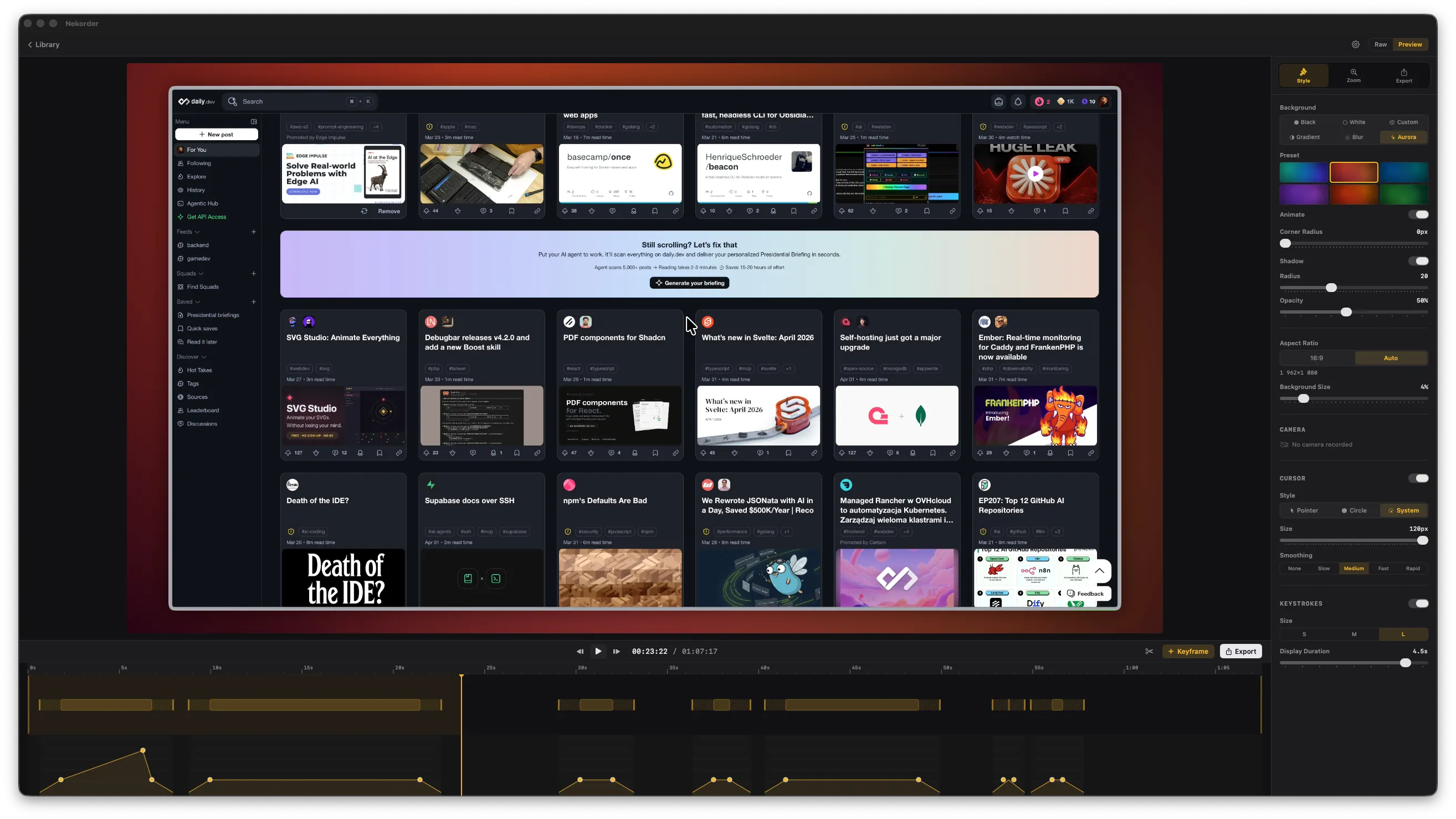
Keyboard shortcuts for the timeline
- Left / Right arrow — step frame-by-frame through the timeline
- Shift + Left / Right — jump forward or back by 1 second
- Escape — deselects the active keyframe (or cancels a cut mark)
Revamped recording interface
The recording screen now shows your displays and windows as a horizontal thumbnail grid with live previews, replacing the old vertical list.
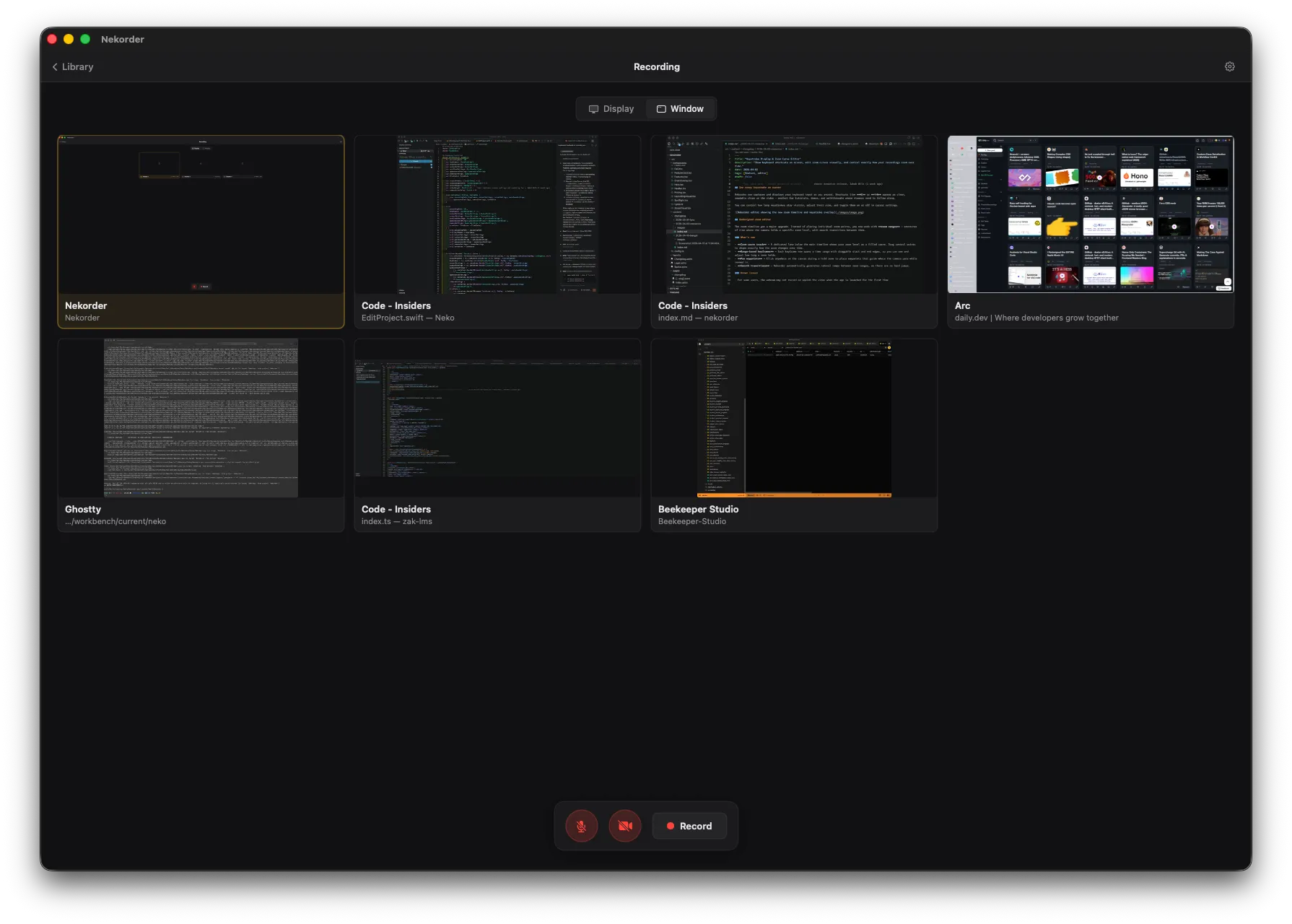
A new device bar at the bottom consolidates microphone and camera controls into a clean, Google Meet-style layout. Click a toggle to mute or disable, or use the chevron to switch devices from a popover menu. Pro-only features show a lock badge when unavailable.
Custom export settings
You can now set a custom resolution and frame rate when exporting. Pick from presets (720p, 1080p, 1440p, 2160p for resolution; 30 or 60 for fps) or type in your own values — resolution supports 480–7680px with aspect ratio linking, and frame rate goes from 1 to 120 fps.
The export progress view now shows an estimated time remaining (e.g., “~2m 30s left”) so you know how long to wait.
Smoother zoom transitions
The zoom system no longer snaps. Camera movement now eases naturally from the base center to your first zoom target, making auto-zoom recordings feel more polished.